
← Back to Insights
How to Use the tPad Portal
How to Create a New Account on the tPad Portal Follow these instructions to create a new account and manage your personal details on the tPad portal. 1. Creating a New Account To create a new account: Access the Portal https://tpad2.tsc.go.ke/ : Click on...
How to Create a New Account on the tPad Portal
Follow these instructions to create a new account and manage your personal details on the tPad portal.
1. Creating a New Account
To create a new account:
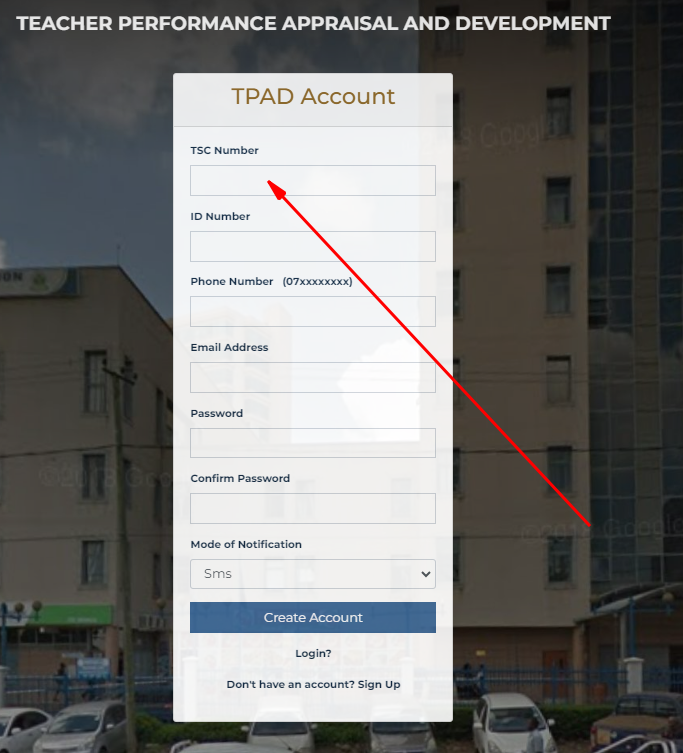
- Access the Portal https://tpad2.tsc.go.ke/: Click on the First Time Login or Create Account link on the tPad portal.
- Enter Your Details:
- TsE Number
- ID Number
- Phone Number
- Email Address
- Create Account: Click on Create Account to complete the registration.
2. Managing Your Account
After logging in, you can update your personal information, add subject combinations, and change your password.
2.1 Updating Personal Information
To change your personal details:

- Navigate to Profile:
- Go to the Job Title Information section.
- Click to reveal a drop-down menu.
- Select My Profile.
- Edit Personal Information:
- Click on the Personal Information tab.
- Add or edit the following:
- First Name
- Other Names
- Surname
- Phone Number
- Email Address
- Postal Address
- Postal Code
- Level of Education
2.2 Adding Subject Combinations
To add the subjects you teach:
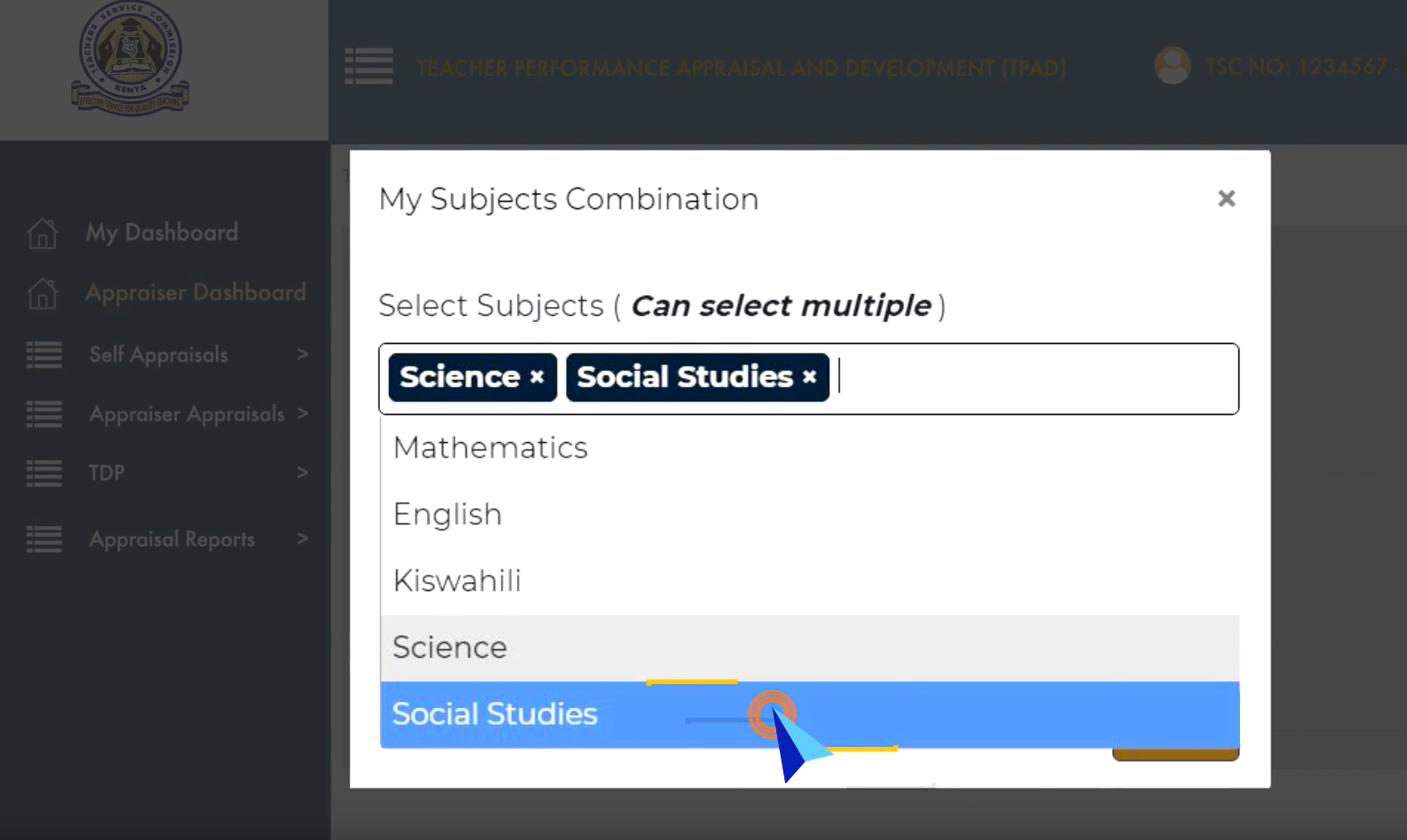
- Access Subject Combinations:
- Click on the Subject Combination tab.
- Click on the Add Subjects Combination button.
- Select Subjects:
- A pop-up window will appear.
- Use the drop-down menu to select your subjects.
- Click on Submit to save.
2.3 Updating Your Password
To change your password:
- Go to Password Settings: Click on the My Password tab.
- Change Password:
- Enter your Old Password.
- Enter your New Password.
- Confirm your New Password.
- Click on Update Password to finalize the change.